Stop Using Access Keys Already
# Dev NoteThis article explains why AWS Access Keys are something you should retire as early as possible, and how to replace them with OIDC + IAM Role.
It covers GitHub Actions CI/CD, services running on EC2/ECS, and local development environments.
What’s so bad about Access Keys?
AWS Access Keys are long-lived credentials made up of an Access Key ID and a Secret Access Key.
Once created, they remain valid forever unless you manually delete or deactivate them.
When you create an Access Key in the AWS console, you’ll also notice that AWS tries very hard to stop you from creating one.
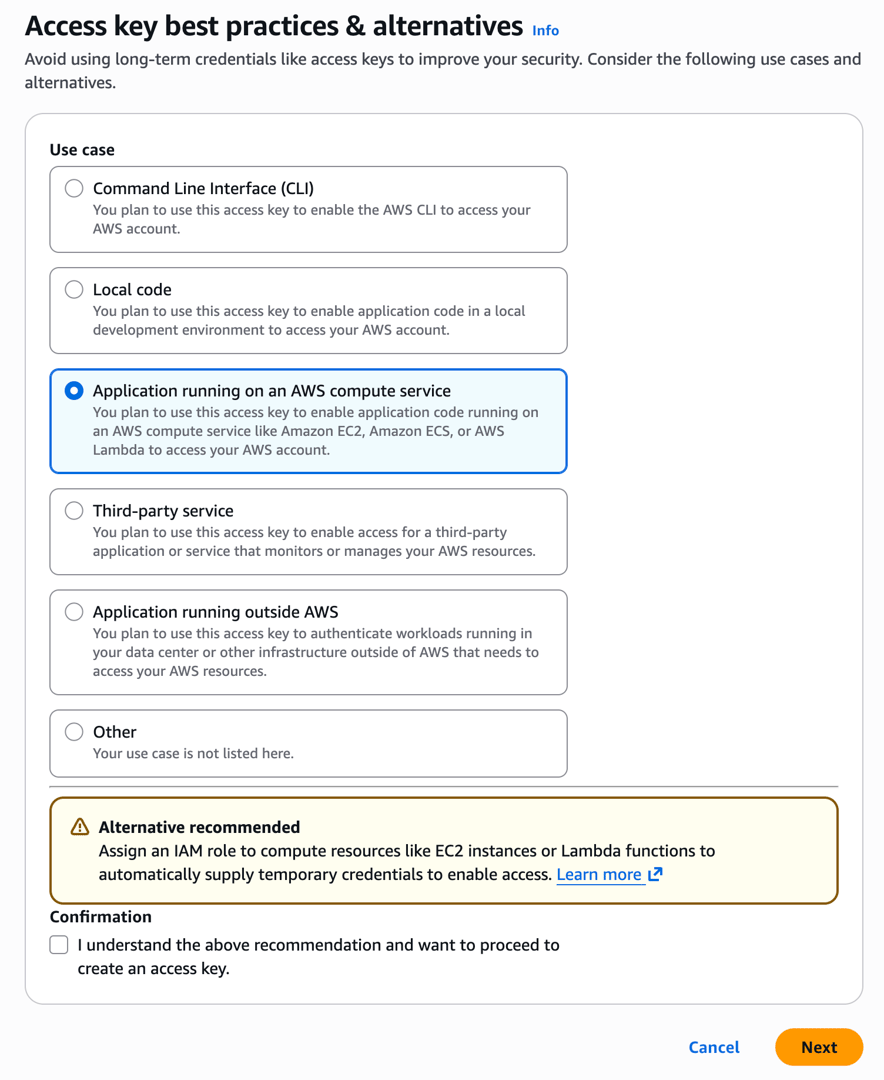
If an Access Key is leaked, an attacker can use those credentials to do anything before you even notice. For example: launch EC2 instances to mine crypto, download customer data from S3, or delete RDS snapshots.
AWS itself says this directly in IAM Best Practices:
Where possible, we recommend relying on temporary credentials instead of creating long-term credentials such as access keys.
Leaks are easier than you think
There are many ways an Access Key can leak:
- Git history: a
.envfile or config file accidentally committed to the repo can still be found ingit logeven after it’s deleted - CI/CD logs: printing environment variables with
echoduring debugging, or a library exposing the full environment in an error stack trace - Employee offboarding: if the key is tied to an IAM User and you forget to revoke it when someone leaves, that’s a risk
- Shared accounts: if the whole team uses the same key, when something goes wrong you can’t even tell who did it
GitHub has secret scanning, and AWS has automatic detection for aws:SecretAccessKey. But these are all after-the-fact mitigations, not fundamental solutions.
The maintenance cost
Even if nothing leaks, maintaining Access Keys has a cost of its own:
- Regular rotation: AWS recommends rotating at least every 90 days. Every rotation means updating everywhere the key is used, including GitHub Secrets, other CI systems, and local development environments
- Permission audits: you need to periodically check whether the IAM Policy attached to the key is over-permissive
- Usage tracking: who is using it? Which workflows are using it? Is it still being used? If a key has existed for six months with no activity, should it be deleted?
For a team of three to five people, this may not seem like a big deal. But as the team grows and the number of projects increases, Access Key management gradually becomes an ongoing burden. The “it probably won’t happen” mindset can come back to bite you one day.
Replace Access Keys with OIDC + IAM Role
GitHub Actions uses OIDC (OpenID Connect) to prove its identity to AWS. After AWS verifies it, it issues temporary credentials that expire in a few minutes. The whole process requires storing no secret at all.
This article uses GitHub Actions as the example, but GitLab CI, CircleCI, and other platforms have similar OIDC integrations.
How OIDC works
OIDC is a JWT-based authentication protocol. In GitHub Actions, the flow looks like this:
GitHub Actions Runner
    │
    │ 1. Requests a JWT token from GitHub's OIDC Provider
    │    (the token includes repo name, branch, workflow, and other info)
    │
    ▼
AWS STS (Security Token Service, the service that issues temporary credentials)
    │
    │ 2. Verifies the JWT signature (using GitHub's public key)
    │ 3. Checks whether the token claims satisfy the IAM Role trust conditions
    │ 4. Returns temporary credentials (Access Key + Secret Key + Session Token)
    │
    ▼
GitHub Actions Runner
    │
    │ 5. Uses the temporary credentials to perform AWS operations
    │    (the credentials automatically expire after the specified time)
    │
    ▼
  Done, credentials expire
Each workflow run gets a new token, and it automatically expires when its lifetime is up. There is nothing to rotate, and nothing that can be recovered from Git history and reused later.
Another important difference is the trust model.
The security of an Access Key depends entirely on the secret never being leaked. Once it leaks, you can no longer distinguish legitimate use from malicious use.
OIDC uses JWT signatures to verify identity, and AWS can independently verify the token’s authenticity through GitHub’s JWKS endpoint without sharing any secret.
Difference from Access Keys
| Access Key | OIDC + IAM Role | |
|---|---|---|
| Credential lifetime | Permanent | A few minutes to a few hours |
| Leak risk | Unlimited use after leak | Invalid once expired |
| Secret management | Must be stored in GitHub Secrets | No secret required |
| Rotation | Manual, at least every 90 days | Automatic, new on every run |
| Auditing | Only traceable to IAM User | Traceable to a specific repo and workflow |
| Offboarding | Must remember to revoke | Not needed, because there are no long-term credentials |
In terms of security risk and management cost, IAM Roles are clearly the better choice. AWS’s own interface also hints at what to do in different situations:
- CLI: use AWS CLI v2 or CloudShell. It’s recommended to use
aws sso loginto avoid storing permanent credentials locally - Local Code: use IDE integration with AWS Toolkit, authenticating via existing console credentials or IAM Identity Center
- Compute resources running on AWS: use IAM Role
- Third-party services: use temporary credentials instead of long-term credentials
- Applications not running on AWS: use IAM Role Anywhere to create temporary credentials
- IAM Role Anywhere requires a certificate authority (such as AWS Private CA). For small teams, the cost of setting up and maintaining PKI is not low, and may not be easier than managing Access Keys
Setup steps
1. Register an OIDC Provider in AWS
Go to IAM Console > Identity providers > Add provider:
- Provider type: OpenID Connect
- Provider URL:
https://token.actions.githubusercontent.com - Audience:
sts.amazonaws.com
Or use the AWS CLI:
aws iam create-open-id-connect-provider \
  --url https://token.actions.githubusercontent.com \
  --client-id-list sts.amazonaws.com
An AWS account only needs to register this once, no matter how many repos will use it. They all use the same provider.
2. Create an IAM Role
Create an IAM Role and set its Trust Policy to trust the GitHub OIDC Provider:
{
  "Version": "2012-10-17",
  "Statement": [
    {
      "Effect": "Allow",
      "Principal": {
        "Federated": "arn:aws:iam::ACCOUNT_ID:oidc-provider/token.actions.githubusercontent.com"
      },
      "Action": "sts:AssumeRoleWithWebIdentity",
      "Condition": {
        "StringEquals": {
          "token.actions.githubusercontent.com:aud": "sts.amazonaws.com"
        },
        "StringLike": {
          "token.actions.githubusercontent.com:sub": "repo:YOUR_ORG/YOUR_REPO:*"
        }
      }
    }
  ]
}
A few things to note:
- Replace
ACCOUNT_IDwith your AWS account ID - Replace
YOUR_ORG/YOUR_REPOwith your full GitHub repo name - You can make the
subvalue more restrictive, for example only allowing themainbranch:repo:org/repo:ref:refs/heads/main - If you want to allow multiple repos, you can use a wildcard:
repo:org/*:*, but then any repo under that org can assume this role
Set the Permission Policy according to your needs. For example, deploying to ECS requires the following permissions:
{
  "Version": "2012-10-17",
  "Statement": [
    {
      "Effect": "Allow",
      "Action": [
        "ecs:UpdateService",
        "ecs:DescribeServices",
        "ecs:DescribeTaskDefinition",
        "ecs:RegisterTaskDefinition",
        "ecr:GetAuthorizationToken",
        "ecr:BatchCheckLayerAvailability",
        "ecr:GetDownloadUrlForLayer",
        "ecr:BatchGetImage",
        "ecr:PutImage",
        "ecr:InitiateLayerUpload",
        "ecr:UploadLayerPart",
        "ecr:CompleteLayerUpload",
        "iam:PassRole"
      ],
      "Resource": "*"
    }
  ]
}
In practice, Resource should not be *; it should be restricted to the specific ECS Service and ECR Repository ARNs. The above is only to show which Actions are needed.
3. Configure GitHub Actions
Add two things to the workflow: permissions and aws-actions/configure-aws-credentials.
name: Deploy

on:
  push:
    branches: [main]

permissions:
  id-token: write
  contents: read

jobs:
  deploy:
    runs-on: ubuntu-latest
    steps:
      - uses: actions/checkout@v4

      - name: Configure AWS Credentials
        uses: aws-actions/configure-aws-credentials@v4
        with:
          role-to-assume: arn:aws:iam::ACCOUNT_ID:role/github-actions-deploy
          aws-region: ap-northeast-1
          role-duration-seconds: 900

      - name: Login to Amazon ECR
        id: login-ecr
        uses: aws-actions/amazon-ecr-login@v2

      - name: Build and push image
        env:
          ECR_REGISTRY: ${{ steps.login-ecr.outputs.registry }}
          IMAGE_TAG: ${{ github.sha }}
        run: |
          docker build -t $ECR_REGISTRY/my-app:$IMAGE_TAG .
          docker push $ECR_REGISTRY/my-app:$IMAGE_TAG

      - name: Deploy to ECS
        run: |
          aws ecs update-service \
            --cluster my-cluster \
            --service my-service \
            --force-new-deployment
A few easy-to-forget points:
permissions must be set. id-token: write allows the runner to request a token from GitHub’s OIDC Provider. Without this line, the runner cannot get a token and will fail immediately. Also, once you set permissions, anything not listed will be set to none, so contents: read must be added too, otherwise actions/checkout won’t have permission to read the repo.
role-duration-seconds defaults to 3600 seconds (1 hour). If your workflow does not run that long, set it shorter. The shorter the credential lifetime, the safer it is.
role-to-assume does not need to be stored in GitHub Secrets. This value is the IAM Role ARN, not sensitive information, so it’s fine to write it directly in the workflow file.
Not just GitHub Actions: EC2 and ECS too
The same principle applies to all workloads running on AWS.
Applications on EC2 should not use Access Keys; they should use an Instance Profile. An Instance Profile is an IAM Role attached to the EC2 instance, and the AWS SDK inside the instance automatically gets temporary credentials through the metadata service.
ECS tasks should also not use Access Keys; they should use a Task Role. Specify taskRoleArn in the Task Definition, and the AWS SDK inside the container will automatically get the corresponding temporary credentials.
{
  "family": "my-app",
  "taskRoleArn": "arn:aws:iam::ACCOUNT_ID:role/my-app-task-role",
  "executionRoleArn": "arn:aws:iam::ACCOUNT_ID:role/ecsTaskExecutionRole",
  "containerDefinitions": [...]
}
Note that taskRoleArn and executionRoleArn are different things:
- Task Role (
taskRoleArn): used by your application at runtime to access AWS resources, such as reading S3 or writing to DynamoDB - Execution Role (
executionRoleArn): used by the ECS agent to pull container images and write CloudWatch Logs
Their permissions should be configured separately and should not be shared.
Don’t use Access Keys for local development either: aws sso login
A lot of people use OIDC in CI/CD, but still keep an Access Key in ~/.aws/credentials for local development.
Local keys have a different risk profile than CI, but they still can’t be ignored: a lost or stolen laptop, an unencrypted disk, or a shared development machine can all put the key into someone else’s hands.
AWS CLI supports login through IAM Identity Center (formerly AWS SSO). The flow is similar to logging into a website with Google OAuth:
aws configure ssoAfter configuration, whenever you want to use it:
aws sso login --profile my-profileA browser will pop up for authentication, and once authenticated, the CLI is ready to use. You still get temporary credentials, and when they expire you simply log in again. There is no need to store any long-term key locally.
~/.aws/config will look something like this:
[profile my-profile]
sso_session = my-sso
sso_account_id = 123456789012
sso_role_name = AdministratorAccess
region = ap-northeast-1

[sso-session my-sso]
sso_start_url = https://your-org.awsapps.com/start
sso_region = ap-northeast-1
sso_registration_scopes = sso:account:access
If your team has not enabled IAM Identity Center yet, this needs to be turned on at the AWS Organizations level. The setup is not complicated, but it does require Organization-level admin permissions.
Once configured, team members can log in to AWS directly with the company IdP (Google Workspace, Okta, Azure AD) without creating separate IAM Users.
Summary
Don’t use Access Keys.
Whether it’s CI/CD, services running on EC2/ECS, or local development, there are corresponding alternatives:
- GitHub Actions → OIDC + IAM Role
- EC2 → Instance Profile
- ECS → Task Role
- Local development →
aws sso login
Once the initial setup is done, the day-to-day maintenance burden is much lower than managing Access Keys. Trust Policies and Permission Policies still need to be adjusted as the project evolves, but at least you no longer have to worry about credential leaks and rotation.
If your GitHub Actions still has AWS_ACCESS_KEY_ID, or there’s still a key sitting in ~/.aws/credentials, now is a good time to clean them out.
Related Posts
- Database Primary Keys: AUTO_INCREMENT, UUID, and UUIDv7Backend developers often have to decide on a primary key: auto increment or UUID? What about collisions? How much faster is UUIDv7 compared with created_at + index? After benchmarking 20 million rows and looking at the design trade-offs, this post gives you the answer.
- Sharing My Experience with ZeaburIndependent developers often choose platforms like Vercel for deploying their services. However, when more advanced requirements arise, such as database connections, Vercel can become less convenient. Additionally, the pricing of typical cloud service providers can be quite expensive for solo developers. In this article, I’ll share some insights on using Zeabur and highly recommend it to everyone!
- Keyboard Enthusiast's Guide - Firmware EditionThis article is part of the IT 2023 Ironman Competition: A Beginner's Guide to Keyboards - Firmware Edition.
- A Brief Discussion on Japanese ElectricityThis article is part of the IT 2023 Ironman competition: A Brief Discussion on Japanese Electricity.