Let's Write Colors with CSS HSL! (And an Even Better Alternative)
When writing colors in CSS, we typically define them using HEX or RGB:
.gray {
  color: #fefefe;
}

.red {
  background-color: rgb(125, 125, 125);
}
This approach has been used for years and was what I learned when I first got started with web development. However, it also comes with several issues.
Hexadecimal format is not very readable for humans. Take #27cc95, for example—just looking at those numbers, I have no way of visualizing what color it is. While hex is easy for machines to parse, representing colors based on the amounts of three primary colors is simply not intuitive for humans.
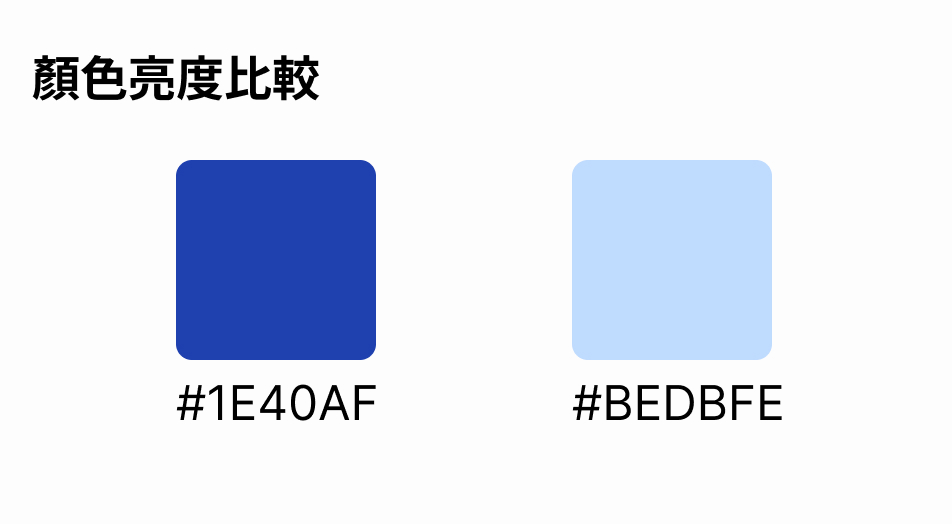
Furthermore, in design systems, colors within the same family are usually arranged into palettes based on different lightness levels to make pairing colors easier for designers. Yet even when only the lightness changes, HEX or RGB values can vary drastically.
- Between
#BEDBFEand#1E40AF, the former is lighter than the latter, but it’s hard to tell that just from looking at their HEX or RGB representations.
With major advancements in CSS and modern browsers, we can now define colors using a format that is much easier to grasp—HSL.
What is HSL?
I’ve noticed that many web developers naturally reach for HSL when writing colors. Once I understood how it works, I realized just how intuitive HSL is for expressing colors.
HSL represents colors in a way that is much easier for humans to understand, broken down into H (Hue), S (Saturation), and L (Lightness). If you enjoy photography, you probably encounter these three terms frequently in photo editing software.
The color wheel looks like this:
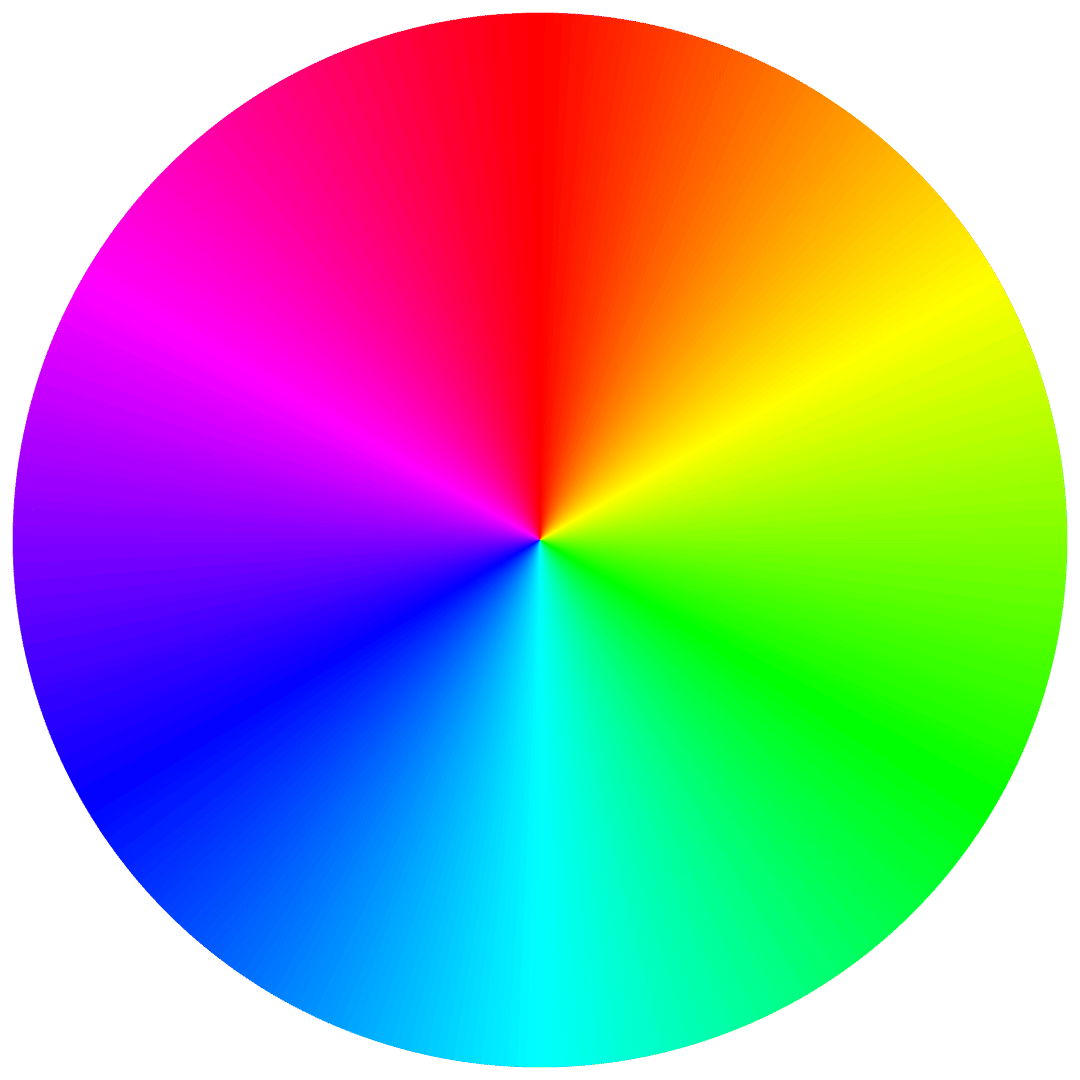
Starting from the top at 0 degrees, it goes through red, orange, yellow, green, cyan, blue, violet, and back around.
Saturation refers to the intensity or vividness of a color. Lower values mean the color is duller—dropping too low gives it a grayish tint—while higher values make it look more vivid. Lightness represents how bright the color is; lower values make it darker.
Once you grasp this, take a look at the color naming conventions often used in systems like Tailwind or Material Design. They are organized by lightness, such as color-indigo-100, color-indigo-200, and so on—though here, lower numbers mean lighter colors.
In real-world applications, other minor adjustments are usually made in addition to lightness.
In CSS, HSL can be written like this:
.my-color {
  color: hsl(220deg, 30%, 20%);
}
Even before seeing the actual color, I can already deduce the following:
- At 220 degrees on the hue wheel, it’s roughly in the blue range.
- It’s a low-saturation, fairly dark (or deeper-toned) blue.
Here is what the color actually looks like:
Perceived Lightness Changes with Hue
Although HSL is intuitive, human eyes perceive certain colors as brighter even when they share the exact same lightness value in HSL. The most obvious example is yellow.
hsl(236deg,100%,50%)
hsl(61deg, 100%, 50%)
Both have a lightness of 50%, yet yellow looks noticeably brighter. This happens because different colors have different wavelengths; for instance, yellow at 60% lightness can look glaringly harsh on a screen.
This is a badge
This is a badge
If we add white text over these to create badge UI components, the contrast on the blue background is acceptable, but the contrast on the yellow background is borderline unreadable.
In design systems, elements sharing similar attributes are often rendered with identical lightness values to create a cohesive and harmonious visual feel. Due to the limitation mentioned above, however, you can’t simply apply identical lightness values across different hues; designers still have to spend extra effort fine-tuning individual colors.
This is a major flaw of HSL, and we’ll discuss potential solutions later on. Still, HSL remains a very effective tool for working with color, and I encourage everyone to learn it and incorporate it into their designs.
HSL as a Design Tool
What I’m about to mention might be common knowledge for designers, but it’s not necessarily so for developers.
Adjusting Text Color on Non-Solid Backgrounds
Rendering text cleanly on non-solid backgrounds can be tricky, but you can achieve a more harmonious look by tweaking saturation and lightness. For example, on the homepage of my blog, I use hsl(230deg, 62%, 83%) as the background color, and hsl(230deg, 37%, 24%) for the text color. By reducing saturation and lowering lightness, the text isn’t just pure black—it carries a slight tint of the background hue, making the overall palette feel much more cohesive.

Controlling Visual Impact Through Hue and Lightness Adjustments
Because we represent colors with HSL in operations like the one above, the purpose and contrast of each value become immediately clear. Once you get used to HSL, you’ll naturally start thinking like this when designing UI:
- Badge background colors shouldn’t be overly jarring; we can opt for a lighter, relatively desaturated color.
- Text color can complement the background by balancing lightness and saturation.
This way, design is no longer just about guessing based on gut feeling—you can adjust values purposefully to achieve your desired outcome.
HSL Only Supports the sRGB Color Space
sRGB is a color space standard supported by virtually all displays. While sRGB has been around for a long time and is ubiquitous, newer color spaces like Apple’s Display P3 allow screens (such as on MacBooks or the Studio Display) to showcase a much wider gamut of colors.
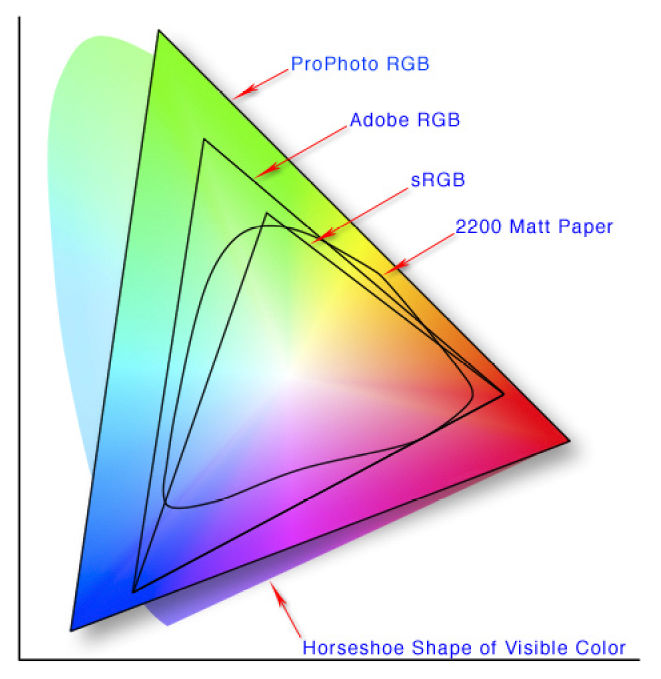
The Difference Between sRGB and P3
- sRGB: The most widely used color space, covering the color gamut of most monitors and web applications. Its gamut is relatively small, making it suitable for general daily use.
- P3: A wider color space that covers roughly 50% more colors than sRGB, particularly in the green and red spectrums. It is commonly found in high-end displays (like Apple Retina displays) and professional media workflows.
The Next Step Beyond HSL – OKLCH
As mentioned earlier, HSL suffers from perceived lightness discrepancies. Even when the lightness value is identical, the human eye is far more sensitive to the brightness of certain hues, preventing us from directly applying matching lightness numbers uniformly.
Additionally, HSL provides the exact same saturation range for every color because it flattens hue, saturation, and lightness into a uniform cylinder to simplify the model. However, neither physical displays nor human eyes perceive the same maximum saturation across different hues.
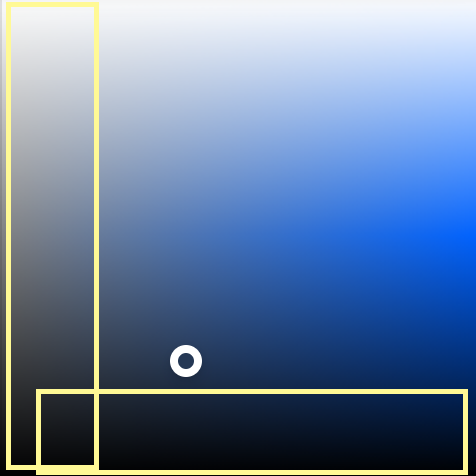
To solve the perceived lightness problem, CSS Color Module Level 4 introduced a new color format: oklch(). It supports wide color spaces like P3, and browsers even handle fallback gracefully: when a color cannot be reproduced in the current color space, it automatically maps to the closest renderable color.
In the next article, we’ll dive into how to use OKLCH and look at its real-world results!
Summary
In web development, while traditional HEX and RGB color formats are widely used, they suffer from poor readability and a lack of intuition, and their capabilities are restricted under wide color gamuts like P3.
HSL (Hue, Saturation, Lightness) provides a far more intuitive way to define colors, allowing developers to understand and modify colors with ease. By describing colors across three dimensions—hue, saturation, and lightness—HSL makes color adjustments more human-friendly, especially in design systems where it better illustrates lightness variations across a palette.
However, HSL also has its limitations, such as variations in perceived lightness across different hues, meaning colors with identical lightness values appear unequally bright to the human eye.
To address this, CSS introduced the OKLCH color model. It not only aligns much more accurately with human perception of lightness, but also supports wide-gamut color spaces like P3 with automatic gamut mapping, elevating web color fidelity.
With HSL and OKLCH, developers can gain much more precise control over colors on the web, improving design consistency and visual quality while preparing for future color standards!
Related Posts
- Recreating My Room with Three.js Using React Three Fiber, I brought my real room into the browser—turning physical objects into an interactive table of contents, and using spatial memory to tell the story of my life and work over the past few years.
- Things to Keep in Mind When Using Images in Frontend Development Expanding on Jake Archibald's article, this post organizes how modern responsive images should be written: why width/height are still necessary, when to use CSS aspect-ratio, how to choose between AVIF and WebP, and using picture/source/srcset for art direction on mobile devices.
- CSS field-sizing — Auto-resize Form Elements with a Single Line of CSS Previously, auto-resizing a textarea required listening to scrollHeight in JavaScript. With CSS field-sizing: content, a single line replaces it all, supporting textarea, input, and select. This article covers the pain points of older approaches and how to use field-sizing.
- Make Your Link Underlines Look Better: text-underline-offset By default, underlines sit very close to the text. Some designers dislike this look, and personally, I don't think it looks great either.